
Have you ever clicked a button and been interrupted by a pop-up demanding your attention? Or perhaps noticed a small information box appear without interrupting your workflow? These are examples of modal and dialog components – powerful user interface elements that, when used correctly, enhance the user experience, but when misused, frustrate users and create accessibility barriers.
When to use modal and dialog components
Although the introduction of the HTML element makes implementation more straightforward, many developers still wonder: "Should this be a modal or non-modal dialog?"“<dialog>
The answer isn't always clear. The choice between these two types of components can significantly impact user flow, attention management, and accessibility. Making the wrong decision can exclude users who rely on assistive technologies or create unnecessary interruptions.
In this article, we'll explore when to use each type, how to implement them in an accessible way, and provide practical code examples for creating user-friendly interfaces that work for everyone.
Modals vs. Dialogs: Key Differences and Use Cases
When it comes to user interface components that appear on top of your main content, the distinction between modal and non-modal dialogs is significant, and choosing the wrong one can frustrate your users.
What's the difference?
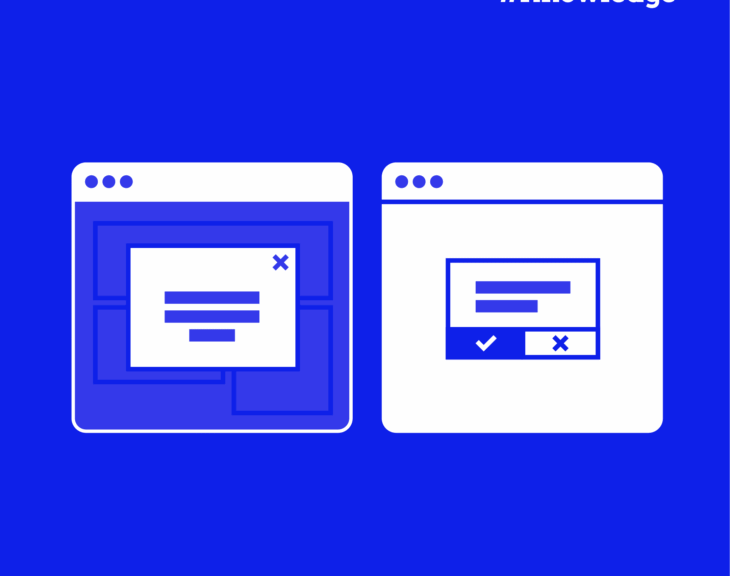
- Modal dialogues Modals block interaction with the rest of the page. When a modal is active, everything below it becomes "inert"—users cannot click, type, or interact with anything except the modal itself. The background is usually faded or blurred to emphasize this separation.
- Non-modal dialogues They provide information or options without hindering interaction with the main content. Users can freely switch between the dialog and the underlying page.
Think of a modal dialogue as someone stopping you in the hallway and saying, “You need to deal with this now.” A non-modal dialogue is more like a post-it note attached to your work that you can refer to when needed.
So how do you know when to use each one? Here are some examples:
| Modal dialogues | Non-modal dialogues |
|---|---|
| Confirming destructive actions (data deletion). | Displaying supplementary information. |
| Collecting necessary information (payment details). | Displaying help text or tooltips. |
| Displaying critical warnings or alerts. | Providing optional settings. |
| Submit legal notices that require acknowledgment. | Offering tools that improve things, but aren't necessary. |
Beyond its function, you also need to think about how it affects the user experience. Both types of components have their advantages and disadvantages.
| Component type | Advantages | Disadvantages |
|---|---|---|
| Modal dialogues |
• It draws attention to important information. • It prevents errors in critical processes. • Creates clear decision points in user flows. • Ensures that important notifications are seen. |
• It disrupts the user's concentration and workflow. • It increases cognitive load by forcing task switching. • Often dismissed hastily, without due consideration. • It can cause frustration if used excessively. |
| Non-modal dialogues | • Maintains workflow continuity. • Reduces cognitive load by allowing users to engage on their own terms. • It allows for contextual reference during work. • It creates a less intrusive and more enjoyable experience. |
• Important information can be forgotten. • Less effective for critical warnings. • It can create visual confusion if not designed correctly. |
As you can see, it's not that one type is better than the other – they just serve different purposes. However, for some reason, the most common mistake developers make is the overuse of modals.
To avoid this, ask yourself:“ Is this information so important that it justifies interrupting the user's current task? ”If the answer is no, consider a non-modal dialog or an alternative user interface pattern.
How to create accessible dialogues and modals
The HTML element revolutionized how we create modal and non-modal dialogs. Before its introduction, developers had to create complex custom solutions with various... ARIA attributes and JavaScript handlers to ensure accessibility. Now, many common accessibility challenges are solved instantly.<dialog>
<dialog id="my-dialog">
  <h2 id="dialog-title">Dialog Title</h2>
  <p>Dialog content goes here</p>
  <button id="close">Close</button>
</dialog>
The element offers two distinct methods:<dialog>
showModal()– Creates a modal dialog box that blocks interaction with the page content.show()– Creates a non-modal dialogue that allows for continuous interaction on the page.
When you use these methods, your element
HTML and ARIA semantic functions
Proper semantic markup ensures that screen reader users understand what is happening on your page. For dialogs, this means clearly communicating that a dialog has been displayed, its content, and its purpose.
<div role="dialog" aria-labelledby="modal-title" aria-describedby="modal-description">For truly urgent situations, such as safety alerts or unsaved work notifications, use the alert function :
<div role="alert" aria-live="assertive">This combination ensures immediate notification by screen readers, regardless of where the user's focus is on the page.
Keyboard accessibility
Not everyone knows how to use a mouse or a touchscreen. For many users, the keyboard is the primary method of navigation, making keyboard accessibility Non-negotiable. Fortunately, if you use showModal ()with the element dialog>, You can close it automatically using the Escape key.
Styling modal dialog boxes
The visual design of your modal dialogs significantly impacts their accessibility. An appropriate style helps users understand the purpose, importance, and how to interact with the modal.
Color contrast
Texts that are difficult to read defeat the purpose of a modal dialogue. WCAG 2.2 standards require a contrast ratio of at least 4.5:1. for normal text and 3:1 for large text. This ensures that people with visual impairments so they can read its content.
Creating a suitable scenario
The background provides visual separation between the modal and the page content:
dialog::backdrop { background-color: rgba(0, 0, 0, 0.7); }This semi-transparent overlay helps users understand that the modal is the active element requiring attention, while the rest of the page is temporarily inaccessible.
Avoiding background interaction
Even with a visual background, it's good practice to avoid scrolling through the background content:
.modal-open { overflow: hidden; }This class (applied to the body when a modal is open) prevents the unpleasant experience of scrolling through background content when users reach the end of a modal.
Focus indicators
Keyboard users navigate interactive elements using tabs. Strong visual focus indicators are essential.
.modal button:focus-visible { outline: 3px solid #ff0; }This high-contrast yellow outline immediately makes it clear which element is in focus on the keyboard, helping users understand where they are in the dialogue.
Visual cues of depth
Shadows and borders help reinforce that the modal exists in a layer above the main content. This spatial relationship helps users mentally model the interface hierarchy.
Resizable modals
Users with visual impairments may need larger text , which requires more space:
.modal { resize: both; overflow: auto; }This allows users to adjust the modal size to their needs, which is particularly useful for complex dialogs with forms or large amounts of text.
Responsive design
Always use media queries to ensure modals work well across all devices. On smaller screens, consider having modals occupy most or all of the screen width to maintain content readability.
Best practices for using the HTML dialog element
So, your dialog element is working, but is it actually easy to use? Let's explore some practical tips that will make your modals not only technically accessible, but also truly enjoyable to use.
Keep them in context.
Have you ever seen those huge pop-ups that take over the entire screen and make you forget what you were doing? Pretty shocking, right?
On desktop devices, users benefit from seeing some content in the background. This helps them remember where they are and what they were doing. Full-screen modals make sense on mobile devices with limited space, but on larger screens, they are usually overkill.
That's why the best tactic here is to show just enough of the background to maintain context.
Give people multiple options.
We've all been stuck in a transportation system with no obvious escape route, so don't do that to your users! See what people expect:
A nice, obvious close button that says “Close” (not just a mysterious “X” that people might miss). The Escape key should also work – thankfully, the element does this automatically, which is one less thing to worry about!<dialog>
Many users also expect to click outside the modal to dismiss it. If you implement this feature, remember to add an ARIA announcement so that screen reader users know the dialog box has been closed.
Make it stand out (but don't shout).
Your modal needs to clearly say "I'm at the top of the page," without being aggressive. A slightly darkened background works wonders – it's like dimming the lights to focus attention on the stage.
Add a subtle shadow or border to further highlight the dialogue from the background. These visual tips help everyone, but are especially important for... people with certain cognitive disabilities who, otherwise, would have difficulty understanding where to focus their attention.
Beware of custom controls.
If you have sophisticated custom components within your dialog box (such as date selectors or custom dropdown menus), double-check. keyboard accessibility . They generally require extra attention with ARIA attributes and keyboard event handlers.
A beautiful component that can't be used with a keyboard is anything but beautiful – it's a barrier. Make sure all your interactive elements can be accessed and operated using only a keyboard.
Test with real tools
Use a screen reader and test the implementation of your dialog yourself. VoiceOver on Mac or NVDA on Windows These are great options.
Try using only the keyboard to navigate everything:
- Can you access all the controls?
- Can you close the dialogue easily?
- Does the focus shift to where you expect it to when the dialogue ends?
These simple tests can reveal problems that would otherwise go unnoticed, and fixing them makes your interface better for everyone.
Elevate your accessible design skills with The A11Y Collective.
Creating truly accessible modal and dialog components goes beyond simply knowing when to use each type. As we've explored, proper focus management, keyboard navigation, and screen reader support are fundamental to interfaces that work for everyone.
Ready to take your accessibility skills to the next level? The course “Accessible Design: Basic Concepts” by the A11Y Collective It develops these concepts with practical techniques for comprehensive web accessibility.
With this course, you will learn to:
- Create websites that comply with accessibility laws and standards.
- Improve navigation, readability, and overall usability.
- It caters to a variety of needs, from users who only use a keyboard to people who use screen readers.
The best part? The course is completely platform-agnostic, making it perfect for designers and developers working with any framework or toolkit.
“"I'm leaving with a stronger understanding and useful lessons that I can apply immediately."”
Tim Hansen, customer review.
Join a community of professionals committed to inclusive design and transform the way you approach not just dialogues and modals, but all the essential components of the user interface in your work. Sign up now for…” Accessible design: the basics “".


